
Your first test vault.
Try the Windows x64 beta with synthetic accounts. These instructions are for testing, not for migrating real passwords.
01Download and install
Download the beta from the home page. The installer is unsigned; Windows may display a warning.
Go to download →02Create a test vault
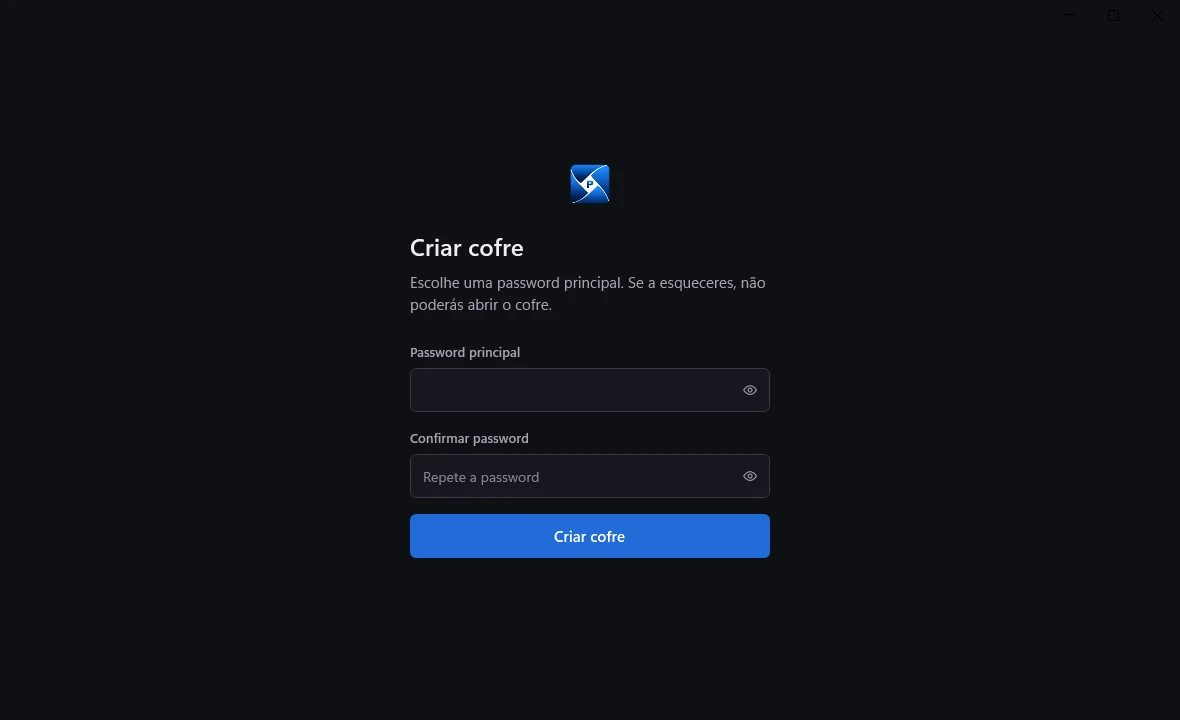
Open PocketVault and choose to create a vault. Set and confirm a test master password. You need it to open the vault again.
03Add a synthetic account
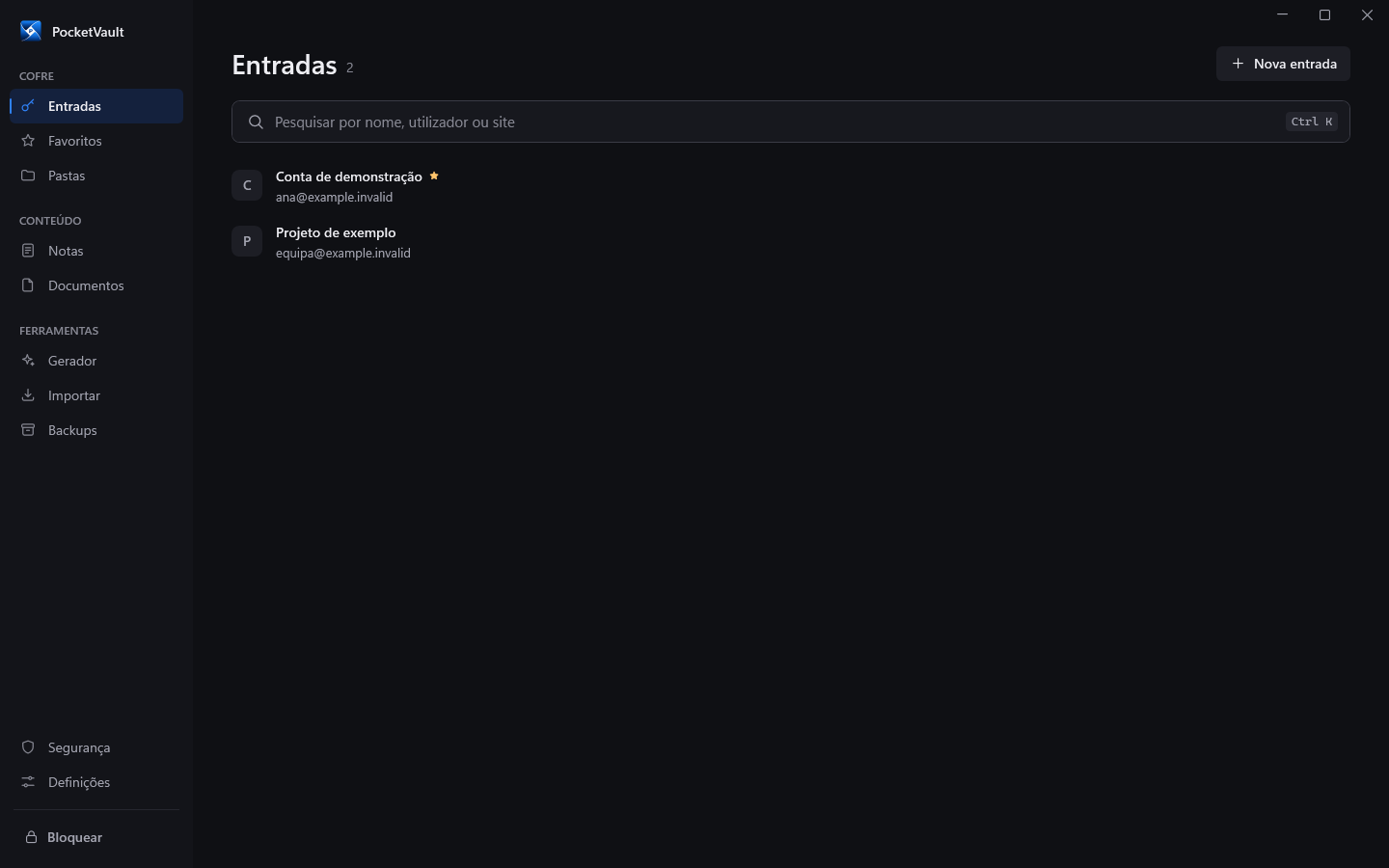
Create a demonstration entry. Use a synthetic name, username and password. Never enter real credentials in this beta.
04Find and use a credential
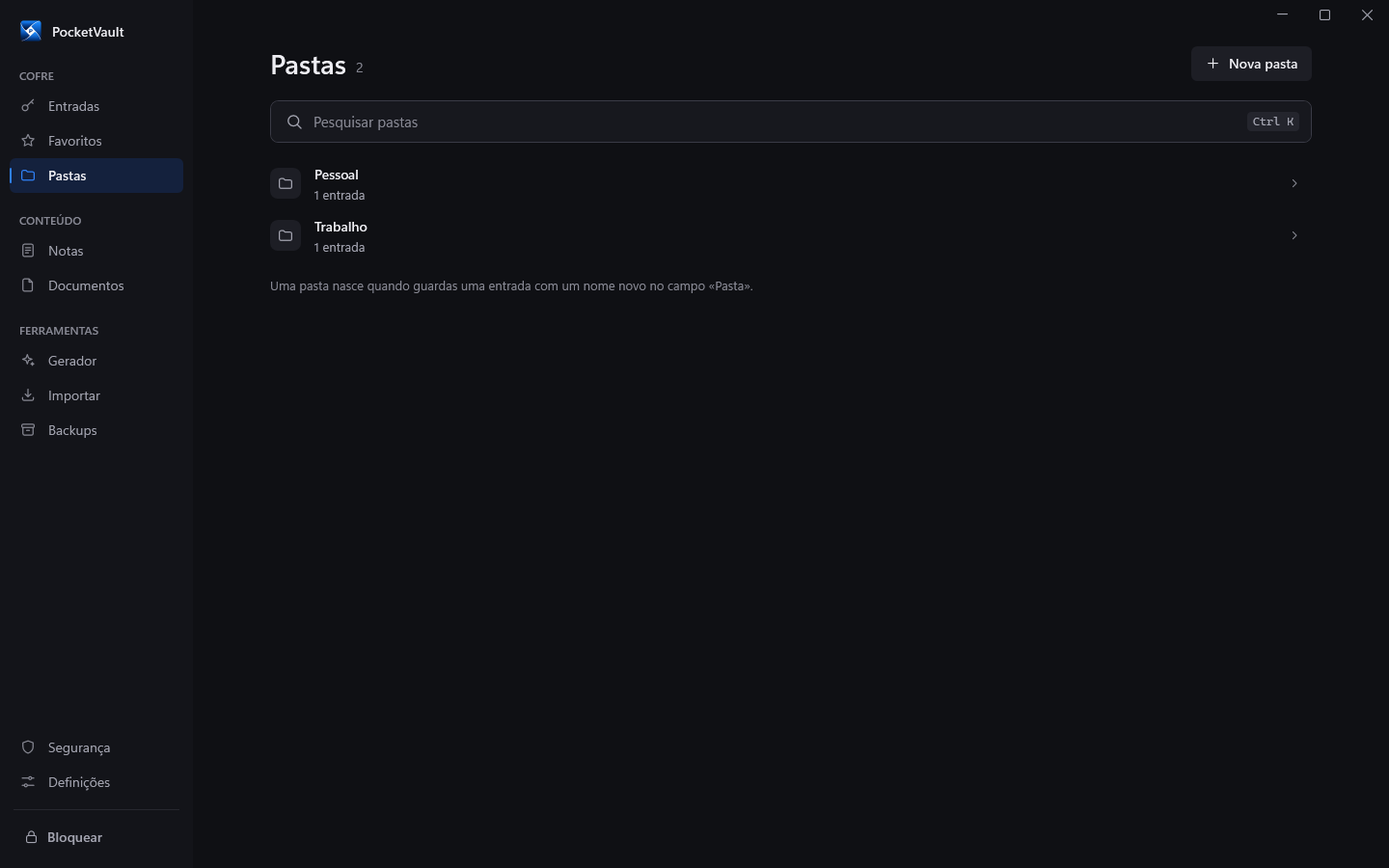
Search for the account by name or open its folder. Try show and copy actions using synthetic data only.
05Create a backup
Open the backups area and create a backup of the test vault. Keep a copy in a separate location. Attached documents also require preserving their folder. A backup does not replace the master password.
Before bringing your data
The Desktop importer recognises Google Password Manager/Chrome and iCloud Passwords CSV files. Unknown formats are rejected. Check compatibility using synthetic data; universal migration is not promised. CSV files may contain readable credentials: do not send them to support.
Use vault backups for preservation and restore. Note exports and encrypted backups are not the same as universal password export to any product.
News and releases
The landing page links to Desktop beta 0.5.3 for Windows x64. Signing and the commercial launch are still in preparation. Documentation will be updated when a new validated version is available.